
Stop pasting documents into ChatGPT. NotebookLM answers from your files and shows the page it used.
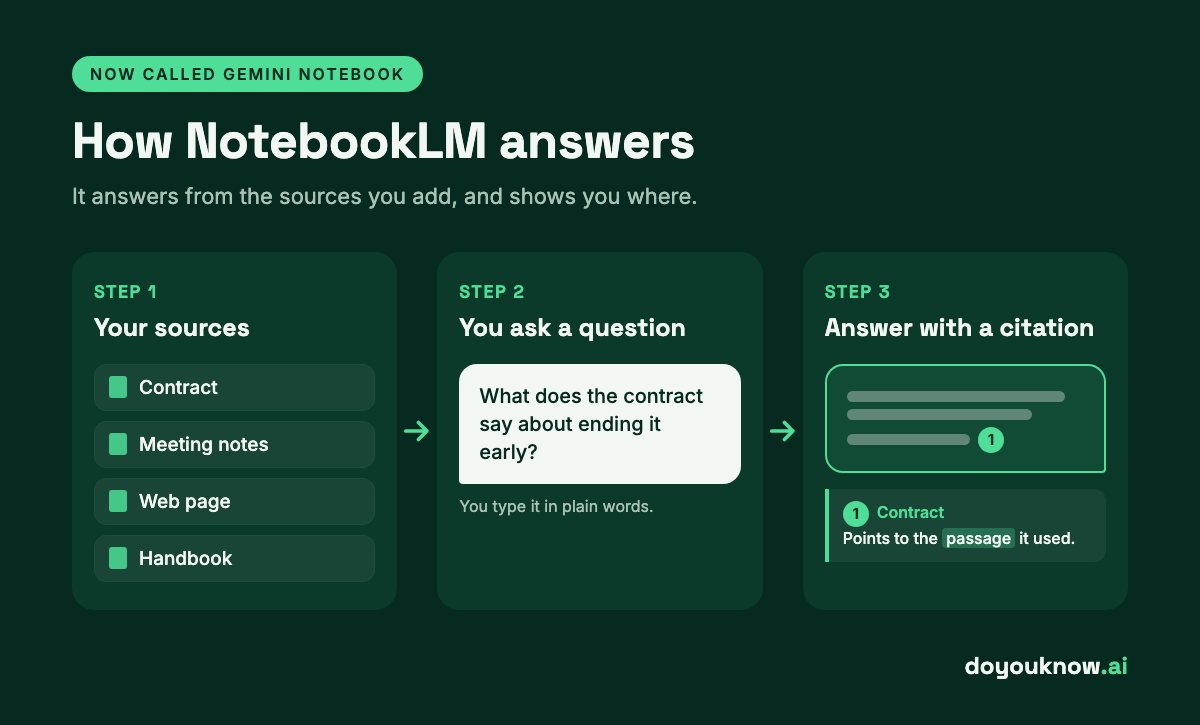
So what is NotebookLM? It's Google's AI research assistant. You add your own documents, web pages or videos, ask questions, and every answer comes with citations back to the passage it used. Google renamed it Gemini Notebook on 16 July 2026, but it's the same tool, and you can start free with a Google account.
If you only read this:
- Use it when the answer must come from your documents, not from the AI's general knowledge.
- Add your files, then ask. Each answer links to the passage it came from.
- Turn a long document into an Audio Overview you can listen to on the move.
- It's free to start. Check what your account type does with your files before you upload anything sensitive.
Below: what it is, how it differs from a chat assistant, how to set it up in five steps, four ways a business owner can use it, whether it's free and private, and the one job where I'd still use ChatGPT instead.
Want this set up for your business documents? Message me on WhatsApp.
What is NotebookLM, and why is it now called Gemini Notebook?
NotebookLM is a notebook for research. You give it sources, and it answers from those sources. Google calls it an AI partner "grounded in the information you trust", with "citations for verification" (product page).
On 16 July 2026 Google wrote: "We're renaming NotebookLM to Gemini Notebook." It "remains a standalone product focused on being your premier research tool", now with "full cross-app syncing between the Gemini app and the standalone Gemini Notebook experience" (Google blog). In plain words: same tool, new name, and your notebooks now show up inside the Gemini app too.
It isn't a niche tool. Google says "more than 30 million people and over 600,000 organizations are using it" (same post).
If you used it before the rename, nothing breaks. "Automatic redirects will ensure existing shared notebooks and user links continue to work," and there's "no action required from admins" (Google Workspace Updates). Most people still search for Google NotebookLM, so I use the old name in this post.
Use NotebookLM for your documents, ChatGPT for a blank page
Both are useful. They're built for different jobs.
A chat assistant such as ChatGPT, Claude or Gemini answers mainly from what it learned and from the web. You can upload files to it as well. NotebookLM starts the other way round: it's built around the sources you add, and it shows you where each answer came from.
| NotebookLM (Gemini Notebook) | A chat assistant (ChatGPT, Claude, Gemini) | |
|---|---|---|
| Where answers come from | The sources you add to the notebook | What it learned, the web, and any files you add |
| Can you check the answer? | Yes: citations point to the passage it used | Depends on the task; check facts yourself |
| Best for | Questions about your own documents: contracts, notes, handbooks, research | Brainstorming, writing from scratch, drafting emails and posts |
So here's the job where I'd still open ChatGPT: a blank page. When you need ideas, a first draft, a tagline or a reply written from nothing, a chat assistant is the better tool. NotebookLM is at its best when the answer already sits somewhere in your files.
Choosing between the chat assistants themselves? Read Gemini vs ChatGPT and Claude vs ChatGPT. Both compare by job, not by feature list.
How to use NotebookLM in five steps
Here's how to use NotebookLM the first time. It's quicker than reading about it.
- Open it. Go to Gemini Notebook in your browser and sign in with your Google account.
- Create a notebook. Select "Create new notebook". Make one notebook per job: one for a contract, one for your meeting notes.
- Add your sources. In the pop-up, select "Upload a source", then pick your files or add a link (Google help).
- Ask. Type a question in the chat. Google's help says you can "ask questions about your sources, give instructions to perform actions, or choose from suggested options." Use the citations to see the passage behind each answer.
- Make something from it. The Studio panel "is where outputs based on your sources are generated": notes, an Audio Overview and more.
What you can add. Google's help lists Google Docs, Slides and Sheets; PDFs, Word, PowerPoint, text, markdown and CSV files; web links; pasted text; images; ePub files; audio files; public YouTube videos with captions; and Gemini chats (Google help). The free plan has limits on notebooks and sources; paid plans raise them. Check Google's help pages for the current numbers.
One thing to know first. "Each notebook is independent." It can't read across several notebooks at once. If two documents need to be compared, put them in the same notebook.
Four ways a business owner can use NotebookLM
Page 1 for this search is mostly students and researchers. Here's what a business notebook looks like. Use sample or your own documents, never a client's, until you've read the privacy section below.
1. Ask your supplier contract the questions that matter
Add a supplier or service contract as a PDF. Then ask:
- "What's the notice period to end this agreement?"
- "Who pays if a delivery is late?"
- "List every date or deadline in this contract."
Each answer comes with a citation that points to the clause, so you can read the exact wording before you rely on it. It doesn't replace your lawyer. It gets you to the right page before the call.
2. Turn a month of meeting notes into decisions and owners
Add a month of meeting notes as Google Docs or text files. Then ask:
- "List every decision we made this month, who owns it and the meeting it came from."
- "What did we agree to do about pricing, and was it raised again later?"
This works best when your notes follow one format. If yours don't, start with our minutes of meeting format.
3. Compare what your competitors offer
Add the public service pages of three competitors as web links. Then ask:
- "Make a table of the services each one offers."
- "Which of them offer a guarantee, and how do they word it?"
- "What does each one say about who they're for?"
You get a side-by-side view, each line linked to the page it came from. Pages change, so add the links again before you decide anything.
4. Give new staff one place to ask questions
Add your staff handbook, process documents and FAQs to one notebook and share it with the team. A new hire can ask:
- "How do I book a day off?"
- "What's the process when a customer asks for a refund?"
They get the answer with the source behind it. When the answer is wrong or missing, you've found a gap in your documents.
Want a notebook like this set up for your team? Message me on WhatsApp and tell me which documents you'd start with.
Audio Overviews: the "NotebookLM podcast"
If you've heard people talk about the "notebook lm podcast", this is it. Google's help describes Audio Overviews as "deep-dive discussions between AI hosts that provide in-depth summaries of the key topics" in your sources (Google help).
You make one from the Studio panel by selecting "Audio Overview". It's made in the background, so you can keep working. Then listen while you drive or walk.
There's more than one format:
- Deep Dive (the default): two hosts talk through your sources.
- The Brief: one speaker gives the key points, in under two minutes.
- The Critique: two hosts give feedback on a draft, such as an essay or a design document.
- The Debate: two hosts argue different views.
You can pick the language and the length, and add your own instructions, such as "focus on the payment terms". Google's product page says Audio Overviews are "now included in all Workspace plans".
Video Overviews also exist, but Google's help says the feature "is only available for Google AI Ultra subscribers" (Google help).
Is NotebookLM free? Plans in plain words
Yes, to start. Google's plans page says: "Sign up free of charge by using your gmail account" (Google help).
As of November 2026, there's a free standard version and paid tiers called Plus, Pro and Ultra. Paying gets you higher notebook and source limits, more access to Google's AI models and earlier access to new features. NotebookLM pricing and limits change, so check Google's plans page for current details rather than any blog post, this one included.
A note for readers in India. The same page says: "A visible watermark will be applied automatically if you reside in India, South Korea, or Vietnam." That applies to media it generates.
My advice: start free with one real document. Only pay once a notebook has become part of your week.
Is NotebookLM private? It depends on your account
Google treats personal and work accounts differently. Here's what its plans page says (Google help).
Personal Google account. "Your data is protected, and is not used to train Gemini Notebook unless you provide feedback." It adds: "When you share feedback to help us improve, we may review the full context of that interaction."
Google Workspace or Workspace for Education account. "Your uploads, queries and the model's responses in Gemini Notebook will not be reviewed by human reviewers", and this holds "even when you provide thumbs up or down feedback, and will not be used to train AI models."
The product page also says your sources "stay private unless you choose to share" a notebook.
My practical rule:
- Use a work (Workspace) account for business documents.
- On a personal account, don't press thumbs up or down on anything sensitive.
- Never upload a client's documents without their agreement.
My take: use it when the answer is already in your files
Use NotebookLM for any job where the answer has to come from your own documents: contracts, notes, handbooks, proposals, research. The citations are the point. You can check an answer against its source before you act on it, and at work that matters more than a clever reply.
Skip it for brainstorming or writing from scratch. That's what a chat assistant is for.
On the rename: the name matters less than where it now lives. Your notebooks now show up inside the Gemini app, so for people who already use Gemini, it's one less tool to open.
If you're still getting your bearings with AI, read how to learn AI first, then come back and build one notebook.
Want a notebook set up for your team's documents?
Tell me which documents your team keeps searching through, and I'll tell you how I'd set up the first notebook. We start on WhatsApp; if it needs more time, that's a consulting session.
FAQ
Is NotebookLM the same as Gemini?
No. It's a separate research product. Google renamed it Gemini Notebook in July 2026, and your notebooks now sync with the Gemini app, but it "remains a standalone product focused on being your premier research tool."
Is NotebookLM free?
Yes, to start. You can sign up free with a Google account. Paid tiers add higher limits, more access to Google's AI models and earlier access to new features. See Google's plans page for current details.
Is NotebookLM private?
It depends on your account. On a personal account, your data is "not used to train Gemini Notebook unless you provide feedback." On a Workspace or Education account, it isn't reviewed by people or used to train AI models, even when you give thumbs up or down feedback.
What is NotebookLM used for?
Answering questions from documents you add, with citations: studying, research, and business jobs such as checking a contract, pulling decisions from meeting notes, comparing competitors' pages and answering new staff's questions. It also turns sources into Audio Overviews.
How do I download audio from NotebookLM?
Open the notebook and find the Audio Overview in the Studio panel. In the audio player, select the Download icon. Google's help notes that some publishers' restrictions can block downloads when a Play Books ebook is one of the sources.
How do I sign up for NotebookLM?
Go to Gemini Notebook and sign in with your Google account. The free version needs no payment. Then select "Create new notebook" and add your first source.
